



 Saif Ali Tai
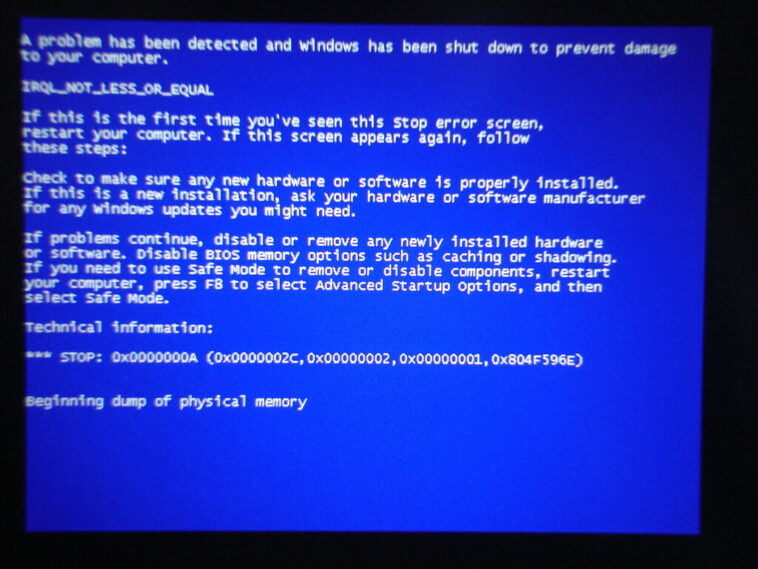
If you are reading this on your phone while staring at a frozen monitor, you have finally hit the dreaded Blue Screen of Death (BSOD). It is the ultimate PC mood killer, but it is rarely a death sentence for your hardware. Whether you are running a custom build with an RTX 5090 or a standard office rig, most crashes boil down to driver conflicts or corrupted system files. Here is how to diagnose the issue and get your machine back online today.
📋 In This Article
Interpret the Error Code

The first thing you must do is stop panicking and read the text on the screen. Windows 11 is much better at being specific than Windows 7 ever was. Look for the stop code at the bottom, like ‘MEMORY_MANAGEMENT’ or ‘IRQL_NOT_LESS_OR_EQUAL’. These codes are your roadmap. If the PC reboots too fast to read it, use a smartphone camera to record the screen on the next attempt. In my experience, 80% of these crashes occur immediately after a Windows Update or a fresh GPU driver install. If you see ‘PAGE_FAULT_IN_NONPAGED_AREA’, you are likely looking at a failing RAM stick or a bad driver update. Write the code down; it saves you hours of blind troubleshooting.
Using BlueScreenView
Download NirSoft’s BlueScreenView if you can boot into Safe Mode. It parses the minidump files created during the crash and highlights the specific .sys file responsible. If you see a file like ‘nvlddmkm.sys’, you know your Nvidia drivers are the culprit. It is a free tool that saves you from guessing which component is actually failing.
The Safe Mode Shortcut
If Windows won’t boot into the desktop, you need Safe Mode. Force a shutdown three times during the boot sequence to trigger the Automatic Repair environment. From there, head to Troubleshoot > Advanced Options > Startup Settings > Restart. Press 4 or F4 to enter Safe Mode. Once you are in, uninstall the last application you installed or roll back your display drivers via Device Manager. I once had a $300 Corsair mechanical keyboard driver cause a system-wide crash loop; removing it in Safe Mode fixed the issue instantly. If the PC stays stable in Safe Mode, the problem is almost certainly software-related, not a dying motherboard or power supply unit.
Rolling Back Drivers
Go to Device Manager, right-click your GPU, select Properties, and hit ‘Roll Back Driver’. If the button is greyed out, download the previous stable version from the manufacturer’s site. Don’t rely on Windows Update for drivers; go directly to Nvidia, AMD, or Intel.
Checking Hardware Integrity
Hardware failure is the nightmare scenario, but it happens. Start with your RAM. Run the Windows Memory Diagnostic tool or, better yet, use MemTest86 on a bootable USB drive. Let it run for at least two passes—if you see red text, one of your RAM sticks is physically toast. Next, check your storage health. If you are using an older SATA SSD or a cheap NVMe drive, use CrystalDiskInfo (free) to check the S.M.A.R.T. status. If the health is ‘Caution’ or ‘Bad’, back up your data immediately and replace the drive. A $90 Samsung 990 Pro 1TB is a cheap insurance policy for your files compared to the cost of professional data recovery.
Reseating Components
Before buying new parts, open your case. Unplug and reseat your RAM and GPU. Dust buildup can cause thermal throttling or poor contact, leading to intermittent crashes. It costs $0 and fixes more issues than you would think.
System File Corruption Fixes
Windows is a complex beast, and sometimes system files just get corrupted. Open Command Prompt as Administrator and type ‘sfc /scannow’. This runs the System File Checker, which scans for broken Windows files and replaces them with cached copies. If that doesn’t work, use the DISM tool. Type ‘DISM /Online /Cleanup-Image /RestoreHealth’. This command talks to Windows Update servers to download fresh, healthy system files. It usually takes about 10 to 15 minutes. If your BSOD errors persist after running both of these, you might be looking at a corrupt Windows installation that requires a clean reset. It is a pain, but it clears out the ‘bit rot’ that plagues long-term OS installs.
The Nuclear Option
If nothing else works, ‘Reset this PC’ in the Windows settings is your final stop. Choose ‘Keep my files’ to save your documents. It will wipe your installed programs, but it usually nukes whatever driver or registry conflict was causing the BSOD.
⭐ Pro Tips
- Always keep a bootable Windows 11 USB installer handy; you can make one for free using the Media Creation Tool on any working PC.
- If you are troubleshooting a custom PC, save yourself $50 in diagnostic fees by testing one RAM stick at a time to rule out a bad module.
- Never install beta drivers from Nvidia or AMD if you need your PC for work; stick to the ‘Game Ready’ or ‘WHQL’ certified releases.
Frequently Asked Questions
How to fix blue screen PC loop?
Enter the Windows Recovery Environment by forcing three failed boots. From there, use ‘Startup Repair’ or boot into ‘Safe Mode’ to uninstall the most recent driver or software update causing the conflict.
Is a blue screen of death a hardware problem?
It can be, but it is usually software. If the PC crashes while idle, it is likely drivers. If it crashes under heavy gaming load, it is often overheating or a failing power supply.
How much does it cost to fix a blue screen?
If it is software, it is free. If you need new hardware like a $100 RAM kit or a $90 SSD, that is your only cost. Avoid repair shops that charge $150 just for diagnostics.
Final Thoughts
The Blue Screen of Death is frustrating, but it is almost always fixable with a bit of patience and systematic testing. Do not rush to buy new hardware until you have exhausted the software fixes like SFC scans and driver rollbacks. If you follow these steps, you will save yourself a trip to the repair shop and plenty of cash. Keep your drivers updated and your PC clean. Stay tuned for more troubleshooting guides.




GIPHY App Key not set. Please check settings