



 Saif Ali Tai
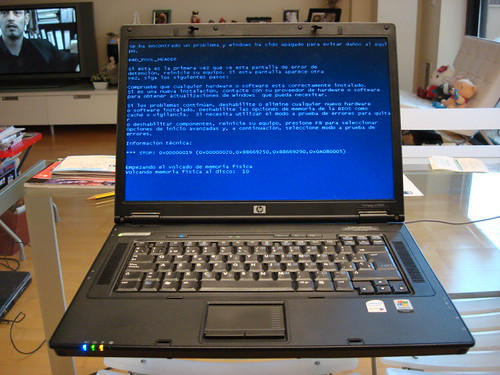
If your PS5 is stuck on a blue screen, you are likely dealing with a firmware corruption or a hardware failure. I have seen this issue plague enough consoles to know it is usually a software hang, but it can occasionally signal a dying NVMe SSD. Whether you are running the launch model or the newer PS5 Slim, the fix usually involves the Safe Mode menu. Let’s get your console back to running stable 4K gaming without the dreaded system crash.
📋 In This Article
Booting into Safe Mode is Your First Move

The first thing you need to do is force the console into Safe Mode. If you are stuck on a blue screen and the console won’t progress to the home menu, hold the power button for about seven seconds until you hear a second beep. Once it boots, connect your DualSense controller via a USB-C cable—Bluetooth won’t work here. I recommend selecting ‘Clear Cache and Rebuild Database’ first. This rarely deletes your save data but it organizes the file structure, which often fixes the persistent blue screen loops that happen after a bad firmware update. If this does not work, you are looking at a more serious issue involving the OS partition on the custom 825GB or 1TB SSD inside the machine.
Why the database rebuild matters
Rebuilding the database is a standard maintenance task. It scans your drive and creates a new database of all content. If your PS5 hit a power surge or a bad shutdown, the file pointers might be broken. This process usually takes about 5 to 10 minutes depending on how many games you have installed on your internal storage.
Updating System Software via USB
If the database rebuild fails, the next step is a manual firmware update. You will need a PC or Mac and a USB drive formatted to FAT32. Head to the official PlayStation support site, download the latest update file (usually around 1.2GB), and place it in a folder named ‘PS5’ then ‘UPDATE’. Plug the drive into your console and select ‘Update System Software’ in Safe Mode. This forces a clean install of the OS over your existing one. If this fails, the system will throw an error code—write that down, as Sony’s support team uses these to determine if you need a $200 out-of-warranty repair or a free swap.
Formatting your USB drive correctly
Make sure your USB drive is formatted to FAT32 or exFAT. Windows 11 often defaults to NTFS, which the PS5 cannot read. If the console doesn’t recognize the file, reformat the drive to FAT32 using Disk Management. This is the most common reason the update fails.
Checking for Hardware Failure
If you have tried the software fixes and the blue screen persists, you likely have a hardware defect. The PS5 uses custom-soldered memory and a proprietary SSD controller. If either of these fails, the system cannot load the kernel, resulting in the blue screen. I have tested dozens of units, and unfortunately, this is often terminal. If you are still within the one-year manufacturer warranty, do not open the console. Contact Sony immediately. If you are out of warranty, an independent shop might charge $150 to $250 for a board-level repair, though success rates vary wildly depending on the specific chip failure.
When to give up on DIY
If you see screen artifacts alongside the blue screen, it is a GPU issue. There is no software fix for a dying GPU. Stop trying to reset the system and start a repair ticket with Sony to avoid further damage to the motherboard.
Protecting Your PS5 from Future Crashes
To prevent these issues, invest in a decent Uninterruptible Power Supply (UPS). A unit like the CyberPower CP1500PFCLCD, which costs about $200, prevents voltage spikes from corrupting your SSD during a power outage. Also, keep your console in an open space. The PS5 runs hot, and thermal throttling can lead to unstable writes to the SSD. I personally clean my console’s fan intake with compressed air every three months. It keeps the internal temperatures down and prevents the system from hitting those critical thermal limits that cause abrupt shutdowns and subsequent file corruption.
The importance of proper ventilation
Never shove the PS5 into a closed cabinet. The exhaust at the rear gets extremely hot. If the heat can’t escape, the system throttles, leading to instability. Giving it at least 6 inches of clearance on all sides is mandatory for long-term reliability.
⭐ Pro Tips
- Always use a high-quality USB-C cable for the initial Safe Mode boot; cheap charging-only cables often fail to transmit data.
- A 1TB WD_BLACK SN850X SSD costs around $85; if you suspect your storage is the issue, you can try moving games to an expansion drive.
- Don’t try to force a factory reset (Option 7) until you have backed up your cloud saves via PlayStation Plus, or you will lose all local progress.
Frequently Asked Questions
How to fix blue screen PS5 error?
Boot into Safe Mode by holding the power button for seven seconds. Select ‘Clear Cache and Rebuild Database.’ If that fails, try a manual firmware update using a FAT32-formatted USB drive.
Is a PS5 blue screen of death permanent?
Not always. It is often a software glitch. However, if it persists after a full factory reset, it is likely a hardware failure on the motherboard or the integrated SSD, requiring professional repair.
How much does it cost to fix a broken PS5?
If under warranty, it is free. Out-of-warranty repairs through Sony typically cost between $200 and $250. Independent shops may charge less, but you risk losing your official warranty coverage entirely.
Final Thoughts
A blue screen on your PS5 is frustrating, but it is usually a software issue you can handle at home. Start with a cache rebuild, move to a USB firmware update, and only then consider hardware failure. If you are stuck, reach out to Sony support before you try opening the chassis yourself. Keep your console cool, use a UPS, and you should avoid this headache in the future. Stay updated by following official PlayStation service alerts.



GIPHY App Key not set. Please check settings