
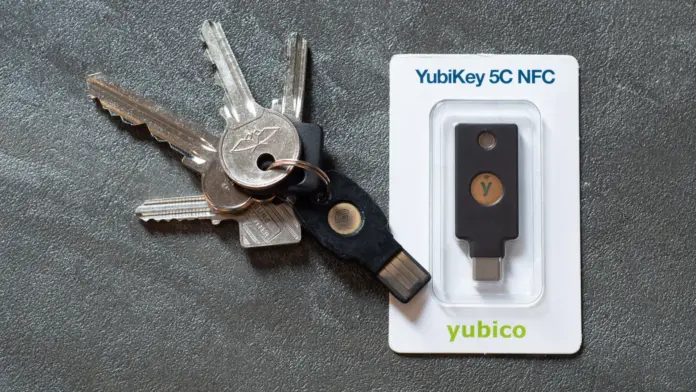
Two-factor authentication (2FA) asks for a second proof of identity after the password, so a stolen or guessed password alone is not enough to open an account. Turning it on takes a few minutes per account, and CISA, the US cyber agency, says users who enable multifactor authentication are significantly less likely to get hacked. This guide covers what the options are, which are strongest, and the exact steps for Google and Apple accounts.
What two-factor authentication does
With 2FA, signing in takes two separate checks: something you know (the password) plus something you have or are, such as a phone, a security key or a fingerprint. The UK’s National Cyber Security Centre (NCSC) calls it 2-step verification and says it can keep attackers out even if they already know the password. CISA describes the same idea with a door analogy: a password alone is like a shut door, and the second step is like locking it.
It matters because passwords are reused, cracked and stolen. A second step does not replace a strong password, so it is worth pairing the two. For help with the password side, see how to check whether a password was leaked.
Which accounts to protect first
Both agencies point to the same priorities. CISA lists email, financial services, social media, online stores, and gaming or streaming accounts. The NCSC names email, banking, social media and online shopping. Email comes first because most “forgot password” links land there, so whoever controls the inbox can often reset everything else.
The main types of second step, from strongest to weakest
| Method | How it works | Notes from the sources |
|---|---|---|
| Passkey or hardware security key | A device-bound credential, or a small USB/NFC key you plug in or tap | CISA calls FIDO/WebAuthn the only widely available phishing-resistant option; the protocol blocks a login on a fake website. Google calls a security key good protection against phishing. |
| Authenticator app | An app generates a short-lived code | Google notes codes are created offline, so they work without mobile service. |
| Prompt on a signed-in device | Tap Yes or No on a notification | Google recommends prompts if a passkey is not used. CISA suggests number matching to block push-bombing attacks. |
| Text or voice code (SMS) | A code sent to a phone number | Google says SMS codes are less secure because of phone-number-based attacks. Still better than nothing: CISA says any MFA is better than no MFA. |
CISA also stresses that phishing-resistant MFA is “the standard all industry leaders should strive for,” while any MFA beats none. In practice, use a passkey or security key where an account supports it, an authenticator app next, and SMS only when nothing else is offered.
How to turn on 2-Step Verification for a Google Account
- Open your Google Account and go to Security & sign-in.
- Under “How you sign in to Google,” choose Turn on 2-Step Verification.
- Follow the on-screen steps and pick a second step (passkey, security key, Google prompt, authenticator app or phone code).
Google adds a few details worth knowing. Backup codes are 8-digit codes for the day a phone is lost, and they should be stored somewhere safe. A newly added phone number can take up to 7 days to be trusted. Work, school or group accounts may block the setting, in which case the administrator has to enable it. Google also warns never to share verification codes and says it will not call to ask for one.
How to turn on two-factor authentication for an Apple Account
Apple says most accounts already use two-factor authentication, and that Apple Pay and Sign in with Apple require it. If it is off:
- On an iPhone or iPad, open Settings, tap your name, then Sign-In & Security, and turn on two-factor authentication. On a Mac, use System Settings in the same way.
- On the web, sign in at account.apple.com and select Upgrade Account Security.
After setup, signing in on a new device or the web needs the password plus a six-digit code that appears on a trusted device or arrives by text. Once a device is signed in, the code is not requested again unless the user signs out fully, erases the device or changes the password for security reasons. Apple also notes that an account created with two-factor authentication cannot have it removed, and that someone who turned it on recently can switch it off only within two weeks of enrolling.
Setting up other accounts
Menus differ, but the NCSC gives a method that works almost everywhere: open the account’s security settings, look for 2-step verification, 2FA or MFA, and check which methods that provider supports. The NCSC says setup takes only a few minutes, and that after it is on, the extra step usually appears only when something looks unusual, such as a login from a new device. If an account has no 2FA option at all, CISA suggests asking the company to add it.
Practical tips
- Save backup codes or add a second method (for example a security key plus an authenticator app) so losing one phone does not lock the account.
- Be careful with the “don’t ask again on this device” option on shared or public computers.
- Never read a verification code to someone who contacts you. Real providers do not ask for them.
- Pair 2FA with other basics from this site’s guide to protecting yourself online.
Frequently asked questions
Is SMS two-factor authentication worth using? Yes, if it is the only option, since CISA says any MFA is better than none. Google, however, rates text codes as less secure than prompts, authenticator apps and security keys.
Do passkeys count as two-factor? Google says signing in with a passkey skips the separate second step, because the passkey itself uses the device’s fingerprint, face scan or screen lock.
What if a phone is lost? Use backup codes or another registered method, and see the provider’s account-recovery page. This is why saving backup codes in advance matters.
Sources
- CISA, More than a Password
- CISA, Multifactor Authentication (MFA) Toolkit
- NCSC, Turn on 2-step verification
- Google Account Help, Turn on 2-Step Verification
- Apple Support, Two-factor authentication for Apple Account
Like our coverage? Add stepphase.com as a preferred source on Google to see more of our stories in Top Stories.

: which methods are strongest and the exact steps for Google and Apple accounts, per CISA and NCSC.)