



 Saif Ali Tai
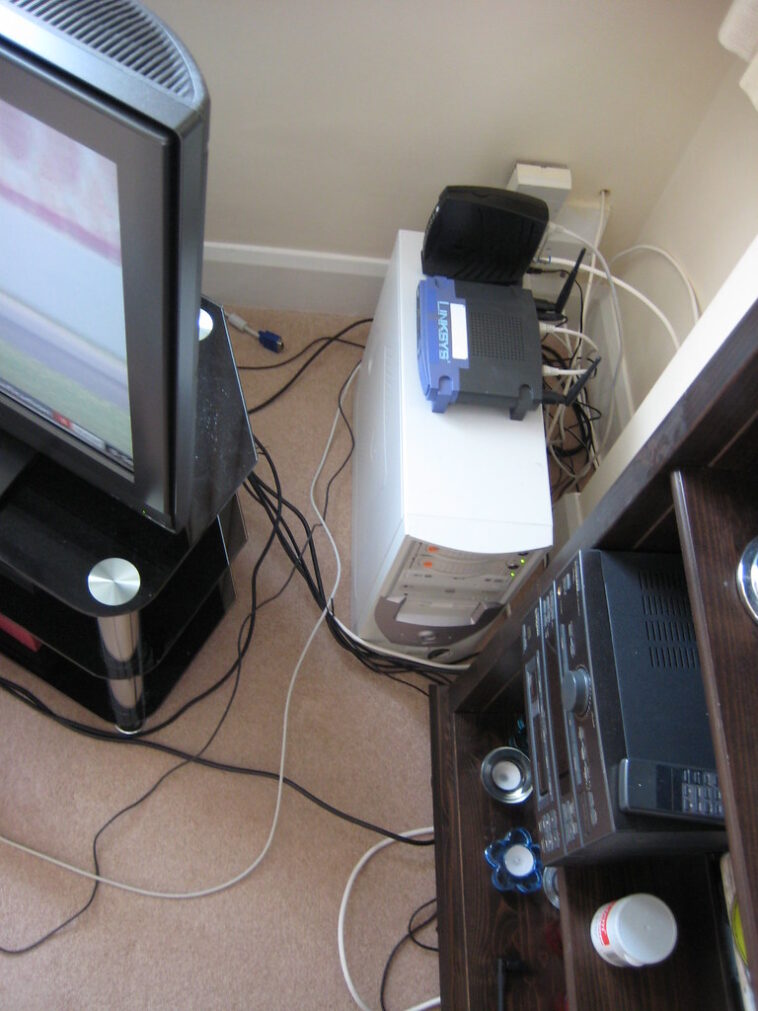
Learning how to set up a home network is the single best way to improve your daily digital life. If you are still using the base gateway provided by your ISP, you are likely losing 30-50% of your potential bandwidth. Whether you are gaming on a PS5 Pro or streaming 8K content on a Samsung S25 Ultra, a solid foundation matters. I have spent years troubleshooting bad connections, and this guide cuts through the marketing fluff to get you wired or wireless performance that actually holds up.
📋 In This Article
Ditch the ISP Gateway and Buy Your Own Hardware

The biggest mistake people make is renting a modem-router combo from an ISP like Comcast or AT&T for $15 a month. That is $180 a year for hardware that usually performs worse than a $120 TP-Link Archer AXE75. First, check your ISP’s approved modem list. If you have cable internet, buy a DOCSIS 3.1 modem like the Arris Surfboard SB8200 for around $130. It pays for itself in less than a year. Once you have a dedicated modem, you need a router that supports Wi-Fi 6E or Wi-Fi 7. Don’t waste money on ‘gaming’ routers with sixteen antennas that look like spiders; focus on solid mesh systems like the Eero Max 7 or the ASUS ZenWiFi BQ16 Pro.
Why Wi-Fi 7 is the new standard
Wi-Fi 7 brings Multi-Link Operation (MLO), allowing devices to connect to multiple bands simultaneously. If you have a modern laptop with a Wi-Fi 7 card, you will see significantly lower latency in high-density areas. It is not just about raw throughput; it is about keeping your connection stable when everyone in the house is on a video call.
Placement and Coverage: Stop Hiding Your Router
I see it all the time: a high-end $600 router stuffed inside a metal cabinet under the stairs. Wi-Fi signals hate metal and concrete. You need to place your main node in a central, open location. If you have a home larger than 1,500 square feet, one router simply won’t cut it. That is where mesh networks come in. I’ve tested the Netgear Orbi 970 series, and while it is expensive at $1,600 for a three-pack, the backhaul performance is unmatched. If you are on a budget, a two-pack of TP-Link Deco BE85s will give you 90% of that performance for roughly $700. Keep your nodes at least 30 feet apart for the best signal overlap.
The importance of backhaul
If your home is wired with Cat6 Ethernet, use it. Plugging your mesh satellites into a wired backhaul frees up the wireless spectrum for your phones and tablets. It turns a good network into a rock-solid one that won’t drop packets during a critical gaming session.
Securing Your Network from Day One
Default passwords are a security nightmare. As soon as you set up your new router, change the admin login to something unique. Most modern apps from Eero or ASUS will force you to do this, but don’t just click through. Enable WPA3 encryption if your devices support it. If you have older IoT devices like smart bulbs or cheap cameras, put them on a ‘Guest Network.’ This isolates them from your main PC and NAS, so if a cheap Chinese smart plug gets compromised, the attacker cannot hop onto your primary laptop. It takes two minutes to set up in the settings menu, and it is the best insurance policy for your personal data.
Use a password manager
Don’t use the same password for your Wi-Fi as you do for your email. Use a password manager like Bitwarden to generate a long, random string for your network key. You only have to type it in once per device, so there is no excuse to keep it simple.
Testing Your Speeds and Troubleshooting
Don’t rely on your ISP’s speed test—they often prioritize that traffic. Use Speedtest.net or Fast.com while connected via an Ethernet cable to get your true baseline. If you are paying for 1Gbps fiber, you should see at least 940 Mbps down. If you are getting 300 Mbps, check your cables. I’ve seen people use old Cat5 cables from 2005 that physically cannot handle gigabit speeds. Replace all your patch cables with Cat6 or Cat6A—you can get a 10-pack of Monoprice cables for $15. If your Wi-Fi speeds are slow, check for channel interference using a free app like Wi-Fi Analyzer. Sometimes switching from a crowded 2.4GHz channel to a clear 5GHz or 6GHz band fixes everything instantly.
Updating firmware is non-negotiable
Set your router to auto-update. Manufacturers like ASUS and Ubiquiti frequently push security patches for vulnerabilities. Leaving your router on firmware from three years ago is like leaving your front door unlocked. Check the app once a month just to be safe.
⭐ Pro Tips
- Buy a dedicated modem and router separately; it saves $180/year in rental fees.
- Use Monoprice Cat6 cables to replace old ones; they cost less than $2 each and prevent bottlenecks.
- Do not place your router in a closed cabinet; it acts as a Faraday cage and kills your signal.
Frequently Asked Questions
How to set up home network for beginners?
Buy a DOCSIS 3.1 modem, a Wi-Fi 7 mesh router, connect the modem to the router via Cat6 cable, and use the manufacturer’s mobile app to configure the SSID and password.
Is mesh Wi-Fi better than a single router?
Yes, if your home is over 1,500 square feet. Mesh systems provide seamless roaming and consistent coverage, whereas a single router will suffer from massive dead zones in larger, multi-story homes.
How much should I spend on a home network?
Expect to spend $250-$400 for a solid setup. $130 for a modem and $150-$250 for a reliable dual-pack mesh system like the TP-Link Deco series will cover most modern households.
Final Thoughts
Setting up a network does not require an IT degree. By buying your own modem, choosing a quality mesh system, and securing your devices with a guest network, you will have a faster, safer home. Stop settling for the terrible hardware your ISP gives you. Spend the money once, set it up right, and enjoy the speed you are actually paying for. Keep your firmware updated and your cables fresh.



GIPHY App Key not set. Please check settings