



 Saif Ali Tai
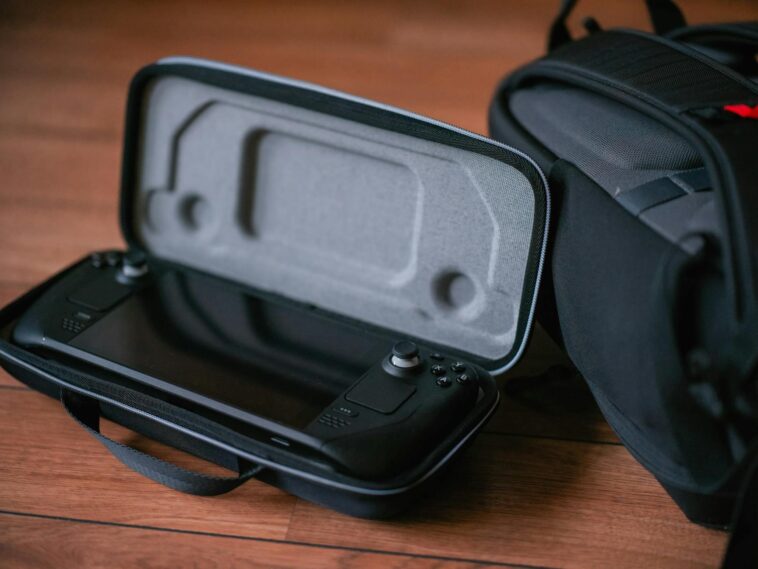
Look, I love my Steam Deck. It’s probably the best handheld ever made, especially the OLED model with its gorgeous screen. But man, that original LCD Deck could burn through a charge faster than I could finish a coffee. Even the OLED, while way better, still feels like it could last longer when you’re deep into a graphically intense game. I’ve spent countless hours tweaking settings, digging through Reddit threads, and honestly, just experimenting to fix battery drain on Steam Deck. It’s not always about buying an expensive power bank; sometimes it’s just a few software adjustments that make all the difference. I’m talking about getting an extra hour, sometimes two, out of a single charge. Trust me, it’s worth the effort.
📋 In This Article
- The Obvious Stuff You Probably Forget (But Shouldn’t)
- TDP and Frame Rate: The Power User’s Secret Sauce
- FSR, Resolution, and Game Settings: Every Pixel Counts
- Software Shenanigans: Updates, Background Processes, and Proton Versions
- Advanced Tweaks and Decky Loader: For the Brave Souls
- Battery Health & Calibration: When It’s Not Your Fault
- ⭐ Pro Tips
- ❓ FAQ
The Obvious Stuff You Probably Forget (But Shouldn’t)
Okay, so before we get into the deep-cut settings and arcane Linux tweaks, let’s hit the basics. It’s like checking if your monitor is plugged in before blaming your GPU. I’ve seen so many people complain about their Steam Deck battery drain, only to realize they’re running max brightness, Wi-Fi blasting, and Bluetooth scanning for devices they don’t even own. These things, while seemingly small, add up. Especially on the older LCD model, that screen brightness is a power hog. Even with the OLED’s efficiency, cranking everything to eleven will still eat through your battery life faster than you can say ‘shader cache.’ Don’t underestimate the cumulative effect here; every little bit helps.
Screen Brightness: Your Eyes vs. Your Battery
This one’s a no-brainer, but it’s easy to overlook. Max brightness is a battery killer. Seriously. Try dialing it back to around 50-60%. You’ll be surprised how little difference it makes to your gaming experience in most indoor environments, but how much it helps your battery. On an OLED Deck, lowering brightness on dark scenes saves even more power because those pixels actually turn off.
Wireless Woes: When to Go Offline
Wi-Fi and Bluetooth are constantly scanning and transmitting, even when you’re not actively using them. If you’re playing a single-player game offline, just turn off Wi-Fi and Bluetooth. Go into Quick Settings (the ‘…’ button) and toggle them off. You’ll instantly see a dip in power draw. It’s free battery life, people! Don’t leave them on unless you absolutely need them for updates or multiplayer.
TDP and Frame Rate: The Power User’s Secret Sauce
This is where the real magic happens for fixing Steam Deck battery drain. Seriously, if you’re not messing with TDP (Thermal Design Power) and refresh rate, you’re leaving so much battery life on the table. Valve gives us these tools for a reason! Most games don’t need to run at 60 FPS to be enjoyable, especially on a smaller screen. And often, pushing for those extra frames forces the CPU/GPU to work way harder, sucking down watts like crazy. I’ve personally seen *Cyberpunk 2077* go from barely 1.5 hours on an LCD Deck to over 2.5 hours just by tweaking these settings. It’s a game-changer.
The Magic of the 40Hz/40FPS Combo
For many games, setting your refresh rate to 40Hz and capping your frame rate at 40 FPS is the sweet spot. It feels significantly smoother than 30 FPS, but uses way less power than 60 FPS. Go to the Quick Settings menu, select the battery icon, and adjust the ‘Refresh Rate’ and ‘Frame Rate Limit.’ Try it on *Baldur’s Gate 3* or *Starfield*; you’ll notice the difference.
Taming the Beast with TDP Limits
TDP (Thermal Design Power) limits the total power your CPU and GPU can draw. This is huge. For less demanding games, I often set it to 6W or 7W. For heavier titles, maybe 10-12W. You can find this under the battery icon in Quick Settings. Experiment! Start low and increase until you hit a playable frame rate. Even a 2W reduction can add 30-60 minutes of playtime.
FSR, Resolution, and Game Settings: Every Pixel Counts
Beyond the Deck’s system-level settings, what’s happening *inside* your games makes a massive difference to battery drain. Think about it: rendering fewer pixels means less work for the GPU, which means less power. This is where AMD’s FSR (FidelityFX Super Resolution) really shines, and where being honest with yourself about graphics settings comes into play. You don’t need Ultra settings on a 7-inch screen, especially if it means your battery dies before you can finish a dungeon. I used to be a graphics snob, but on the Deck, battery life trumps pixel count for me now. It just does.
FSR: Free Frames, Free Battery Life?
FSR upscales games from a lower internal resolution, making them look sharper without the GPU having to render native resolution. Enable it in Quick Settings under the battery icon. Set your ‘Scaling Filter’ to FSR, and then drop the ‘Resolution’ in your game’s settings to 720p or even lower. The Deck will upscale it to native 800p, saving a ton of power.
In-Game Graphics: Dial It Back, Seriously
This is tough for some, but crucial. Go into each game’s graphics settings and lower things like shadows, anti-aliasing, and texture quality. You’d be surprised how little visual impact ‘medium’ settings have compared to ‘high’ or ‘ultra’ on the Deck’s screen, but the power savings are immense. Prioritize frame rate and battery over visual fidelity where possible.
Software Shenanigans: Updates, Background Processes, and Proton Versions
It’s not just about what you’re actively playing; it’s also about what the Steam Deck is doing behind the scenes. Background updates, shader cache downloads, and even your choice of Proton version can subtly but consistently contribute to Steam Deck battery drain. I’ve had days where my Deck felt like it was draining faster than usual, only to find a massive shader cache download happening in the background. Valve does a good job optimizing, but you still need to be aware. A little housekeeping goes a long way here, trust me.
Auto-Updates & Shader Pre-Caching: Silent Killers
By default, the Deck downloads game updates and shader caches automatically. This runs in the background, drawing power. Go to Steam > Settings > Downloads and consider disabling ‘Download updates for installed games automatically.’ You can also manage shader pre-caching there. I prefer to manage these manually, especially when I’m on battery.
Proton Versions: Sometimes Newer Isn’t Better (for battery)
While Proton GE often offers better performance, sometimes an older, more stable Valve Proton version can be more power-efficient for a specific game. If you’re struggling with battery life on a particular title, try cycling through a few different Proton versions (right-click game > Properties > Compatibility). It’s a bit of trial and error, but it can work wonders.
Advanced Tweaks and Decky Loader: For the Brave Souls
Okay, so you’ve done all the basics, you’ve tweaked your TDP, and you’re still hungry for more battery life. This is where we step into slightly more advanced territory. We’re talking about community-made tools and plugins that can dive deeper into the Deck’s power management. I’m a big fan of Decky Loader, but you gotta be smart about what you install. Some plugins are fantastic for battery, others can actually make things worse if you’re not careful. This isn’t for everyone, but if you’re comfortable poking around, there’s gold to be found.
CryoUtilities and Swap File Magic
CryoUtilities is a popular community script that optimizes memory management and the swap file. It can improve performance and potentially reduce power draw by making the system more efficient. Install it via Desktop Mode, then run the recommended settings. It’s safe, but always follow the instructions carefully. This can make a noticeable difference, especially on the 64GB or 256GB models.
Decky Loader Plugins: Friend or Foe?
Decky Loader offers plugins like PowerTools, which lets you fine-tune CPU threads, SMT, and even GPU clock speeds beyond the stock settings. Used correctly, it can save power. But be warned: some plugins can introduce instability or even *increase* power usage if misconfigured. Research each plugin before installing and always test changes thoroughly. I mainly use PowerTools for specific game profiles.
Battery Health & Calibration: When It’s Not Your Fault
Sometimes, no matter how many settings you tweak, your Steam Deck battery drain might just be a hardware issue. Batteries degrade over time; it’s just a fact of life for any portable device. If you’ve had your original Steam Deck since 2022, its battery isn’t going to hold a charge like it did on day one. Even the OLED models, while newer and with better battery tech, will eventually show signs of wear. It’s important to understand what’s normal degradation and what might be a sign of a deeper problem. Don’t beat yourself up if you’ve done everything else and it’s still draining fast.
Understanding Your Battery’s Lifespan
You can check your battery’s health in Desktop Mode using a tool like ‘power_supply_info’ in the terminal. Look for ‘charge_full_design’ vs ‘charge_full’. The closer they are, the better. Over time, your ‘charge_full’ will decrease. A 10-15% drop after a couple of years is pretty normal for regular use. If it’s a huge drop, you might have a problem.
The Occasional Full Cycle: Is It Still a Thing?
While modern lithium-ion batteries don’t strictly *need* full discharge/recharge cycles like older tech, doing one occasionally can help recalibrate the battery’s reporting. If your Deck’s battery percentage seems off, try letting it drain completely, then charge it fully without interruption. It won’t magically fix a degraded battery, but it can make the percentage display more accurate.
⭐ Pro Tips
- Always use a custom TDP for *every* game. Even for light indies, dropping it to 6W can save an hour.
- Invest in a good 65W USB-C power bank for longer sessions. The Anker 737 Power Bank (around $150) is my go-to and charges the Deck at full speed.
- Create game-specific performance profiles. Use the ‘Performance per-game profile’ option in Quick Settings so you don’t have to re-tweak for every title.
- Disable controller vibration. It’s a small drain, but it’s constant. Go to Steam > Settings > Controller > General Controller Settings and turn off ‘Steam Input Per-Game Setting’ or ‘Vibration’.
- Don’t leave your Deck in ‘sleep’ mode for extended periods. If you’re not playing for hours, a full shutdown (or even just putting it in airplane mode) saves more battery than sleep.
Frequently Asked Questions
Why is my Steam Deck battery draining so fast suddenly?
Often, it’s a background update or shader cache download. Check your download queue. Otherwise, a recent game update might have changed default settings, or you’re playing a new, more demanding game without adjusting performance settings.
How much does a new Steam Deck battery replacement cost?
A replacement battery from iFixit for the original LCD Deck runs about $65 USD. The OLED battery is harder to find separately right now, but expect similar or slightly higher prices. DIY replacement is moderately difficult.
Is Steam Deck OLED battery life better than the original?
Yes, absolutely. The Steam Deck OLED has a larger 50Wh battery (vs 40Wh) and a much more efficient screen. I easily get 30-50% longer battery life on demanding games, and double or triple on lighter titles. It’s a huge upgrade.
What’s the best power bank for Steam Deck?
For full-speed charging, you need a power bank that supports 45W or 65W USB-PD. I highly recommend the Anker 737 Power Bank (24,000mAh, 140W output) or the Baseus Blade (20,000mAh, 100W). They’re pricey but worth it.
How long should a Steam Deck battery last on average?
It varies wildly. For demanding games like *Cyberpunk 2077* (tweaked), expect 1.5-3 hours on LCD, 2.5-5 hours on OLED. For lighter indies like *Stardew Valley*, 4-8 hours on LCD, 6-12+ hours on OLED. It’s all about the game and your settings.
Final Thoughts
So, there you have it. Fixing Steam Deck battery drain isn’t a single magic bullet; it’s a combination of smart settings, understanding what’s running, and a bit of patience. I’ve been there, staring at that rapidly declining battery percentage, wondering if I’d even make it through the next boss fight. But with these tweaks, I’ve managed to squeeze out so much more playtime from both my original LCD Deck and my newer OLED. Don’t just accept poor battery life. Get in there, mess with those sliders, and reclaim your gaming sessions. You’ll thank yourself when you’re still playing long after your friends’ Decks have gone dark. Seriously, give these a shot this weekend.



GIPHY App Key not set. Please check settings