
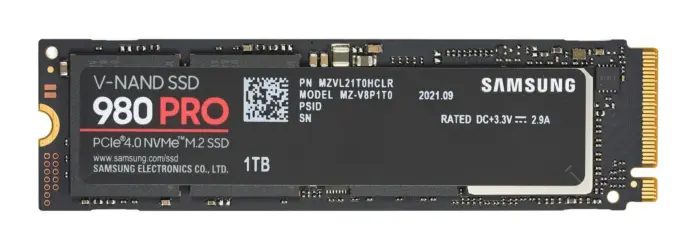
An NVMe SSD, a SATA SSD and a hard drive (HDD) all store files, but they connect to a computer differently and suit different jobs. A SATA link tops out at 600 MB/s, according to IBM, while an NVMe drive on a PCIe 4.0 x4 connection can reach 7,880 MB/s on paper. Hard drives are slower again, but they still hold far more data per dollar. This guide explains what each type is, where each fits and what to check before buying.
What is the difference between NVMe, SATA SSD and HDD?
- HDD: a spinning-disk drive with moving parts. Western Digital says hard drives “can scale to more than 36TB per drive” and describes their cost per gigabyte as lower than SSDs.
- SATA SSD: flash storage with no moving parts, using the older SATA connection. IBM puts SATA III at up to 600 MB/s (6 Gb/s), citing the Serial ATA International Organization.
- NVMe SSD: flash storage that talks to the computer over PCI Express. The NVM Express organisation defines NVMe as “the register interface and command set for PCI Express technology attached storage”, built for high bandwidth and low latency.
“SSD” describes the flash memory, not the connection. That is why a SATA SSD and an NVMe SSD can both be called SSDs while performing very differently.
How much faster is NVMe than SATA?
IBM’s NVMe vs SATA comparison gives these figures:
- SATA III: up to 600 MB/s.
- NVMe on PCIe 4.0 with four lanes: up to 7,880 MB/s in the article’s comparison table.
- A top-end NVMe drive from Sandisk: a theoretical 14,900 MB/s sequential, which IBM calls “nearly 25 times faster” than SATA III.
These are maximums, and IBM notes that real-world results depend on the system and the workload. PCWorld’s older guide, published in March 2019, measured approximate sustained speeds of about 200 MB/s for a hard drive, 550 MB/s for a SATA SSD and 3 GB/s for an NVMe SSD. Newer NVMe drives are much faster than that 2019 figure, but the ordering has not changed: HDD, then SATA SSD, then NVMe.
The gap comes from more than raw bandwidth. According to IBM, SATA uses a single command queue holding up to 32 commands, while NVMe supports up to 65,535 queues of up to 65,535 commands each and lets each processor core use its own queue. IBM adds that real systems rarely approach that ceiling. The practical effect is that NVMe handles many simultaneous requests, such as a game loading while the system updates in the background, with less waiting.
When is a hard drive still the right choice?
Western Digital’s HDD vs SSD page is a vendor source that sells hard drives, so read its claims with that in mind. Its main points are consistent with the other sources, though:
- Capacity per dollar: hard drives have “lower, unbeatable value” per gigabyte, and the page says SSDs typically reach up to 8 TB in the M.2 size.
- Best uses for HDDs: backups, media libraries, network storage (NAS), surveillance and long-term storage.
- Best uses for SSDs: the operating system, apps, active projects and gaming, where speed matters.
- Durability: SSDs are shock-resistant because they have no moving parts, but have limited write cycles. WD also warns that data can be unrecoverable if an SSD controller fails, whereas data often survives a mechanical failure on a hard drive.
IBM’s use-case list lines up with this: NVMe for video editing, virtual machines, databases and 3D rendering; SATA for backups, file storage, media libraries, office work and older hardware. Whichever you choose, a drive is not a backup. Keep a second copy of anything important, for example in cloud storage.
Will an NVMe drive work in my laptop or PC?
Not always. PCWorld explains that the M.2 slot, the small stick-shaped connector, was designed to carry USB 3.0, SATA or PCIe, and that “most early M.2 slots supported only SATA”. You cannot tell from the slot’s appearance whether it supports NVMe. Check these before buying:
- Look up your laptop or motherboard manual for the M.2 slot and whether it supports NVMe, SATA or both.
- Confirm that the machine can boot from NVMe. PCWorld says most older mainstream BIOS versions did not support it.
- Check the drive’s length and any heatsink clearance in the manual or the maker’s specifications.
Planning a Windows 11 upgrade at the same time? Our Windows 11 requirements guide lists what else the PC needs.
Which should you buy?
- Main drive for a new PC or laptop: an NVMe SSD if the machine supports it. Pair it with a hard drive only if you need bulk space.
- Upgrading an older PC: a SATA SSD is often the simpler change. Our guide to speeding up a slow Windows PC covers free steps to try first.
- Game library: install games you play now on the fastest drive and keep the rest elsewhere. Large releases are big: see the 212 GB GTA 6 download.
- Archive, photos and backups: a hard drive gives the most space for the money.
Prices and drive models change quickly, so compare current listings; this guide does not quote prices.
Sources: IBM, NVMe vs SATA; NVM Express, About NVMe; Western Digital, HDD vs SSD; PCWorld, NVMe SSDs: everything you need to know (March 2019). All read on November 16, 2026. Speeds are manufacturer or theoretical maximums.
Like our coverage? Add stepphase.com as a preferred source on Google to see more of our stories in Top Stories.

