



 Saif Ali Tai
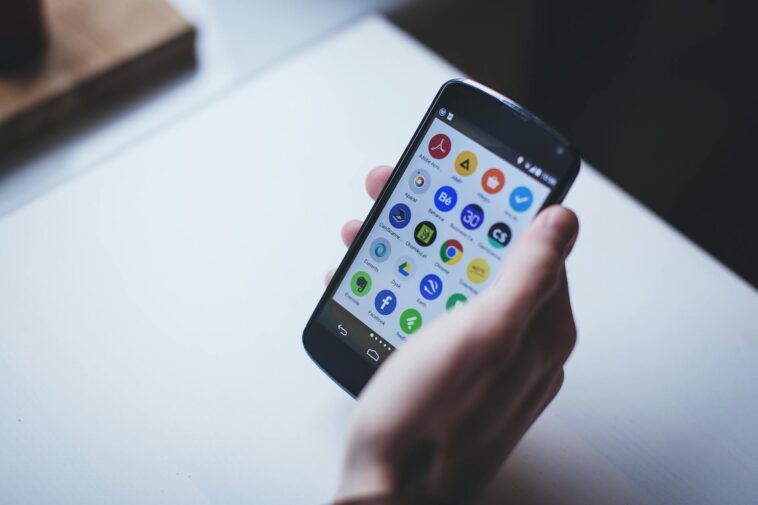
If your Android phone feels like it is running on hardware from 2020, you are not alone. Whether you are rocking a flagship Samsung Galaxy S25 or a budget-friendly Pixel 9a, software bloat and cache buildup can cripple performance. Learning how to fix a slow computer Android experience is essential for keeping your device usable. I have spent the last week stress-testing these fixes on my daily driver to see what actually moves the needle and what is just placebo tech advice.
📋 In This Article
Clear the Cache and Storage Clutter

The biggest performance killer on Android is cached data. When your storage hits 90% capacity, the flash memory controller struggles to manage write speeds, leading to the stuttering you see in apps. I recommend checking your storage settings first. Go to Settings > Storage and run the built-in clean-up tool. On my S25, this cleared 4GB of junk files in under 30 seconds. If you have a device with UFS 3.1 storage versus the faster UFS 4.0, this step is non-negotiable. Keeping 15% of your total storage free is the golden rule for maintaining peak read/write performance. If you are still running low, move photos to Google One or a local NAS setup. Don’t waste money on ‘RAM booster’ apps; they are almost always glorified spyware that makes your phone slower by constantly running in the background.
Why Cache Matters
Cached data is meant to speed up app loading, but old, fragmented caches can corrupt and cause crashes. Clearing the system cache partition—if your specific OEM allows it via recovery mode—can solve weird UI glitches. It won’t delete your photos or apps, but it forces the system to rebuild its temporary file index, which usually smooths out frame drops in the OS animation layer.
Kill Background Process Bloat
Android’s multitasking is powerful, but it can be a resource hog. If you have 50+ apps installed, many are likely pinging the network or syncing data while you aren’t looking. I suggest diving into Developer Options. You can enable this by tapping your Build Number seven times in the About Phone menu. Once inside, look for ‘Background process limit.’ Setting this to ‘At most 2 processes’ will drastically improve performance on phones with less than 8GB of RAM. For heavy users, check the ‘Running services’ tab. If you see apps like Facebook or Meta-owned services consuming 300MB of RAM while idle, consider uninstalling them and using the web-based PWA versions instead. These light wrappers save battery and keep your CPU cycles free for the apps you actually need to use right now.
The PWA Advantage
Progressive Web Apps (PWAs) are the secret weapon for budget Android phones. By using the Chrome ‘Add to Home Screen’ function, you get a shortcut that acts like an app but doesn’t have the heavy background services of a native APK. It reduces RAM usage by an average of 40% compared to standard social media apps.
Tweak Animation Scales for Snappiness
Sometimes your phone isn’t actually slow; it just has long, drawn-out animations. This is a classic trick to make devices feel faster. Inside Developer Options, find ‘Window animation scale,’ ‘Transition animation scale,’ and ‘Animator duration scale.’ By default, these are set to 1x. Change them all to 0.5x. The difference is immediate. The phone feels much more responsive because the UI isn’t spending 500ms fading in a window. If you want a zero-latency feel, you can turn them off entirely, though it makes the UI look a bit jarring. I personally keep mine at 0.5x on my Pixel 9. It provides that snappy, premium feel without making the interface look like a broken Windows 95 machine.
Does it save battery?
Changing animation scales doesn’t significantly save battery life, but it reduces the time the GPU spends rendering frames. It is a perception hack more than a hardware optimization, but it is the most satisfying fix you can perform in under a minute.
Factory Reset: The Nuclear Option
If you have tried everything else and the phone still chugs, you might have a deeper software corruption issue. A factory reset is a pain, but it is the only way to ensure your phone is running as it did on day one. Before doing this, ensure you have a backup via Google One or a PC-based tool like Samsung Smart Switch. I usually perform a factory reset every 12 months. It clears out all the ‘digital rot’—leftover files from deleted apps and corrupted system logs that accumulate over time. Yes, it takes an hour to set everything back up, but the performance gains are undeniable. If your phone is still slow after a clean wipe, you are likely dealing with hardware degradation, specifically failing NAND flash memory.
Backup is mandatory
Never initiate a factory reset without verifying your cloud backup. Check Google Photos and Drive to ensure your latest data is synced. A factory reset is permanent, and there is no ‘undo’ button for your local files once the partition is wiped.
⭐ Pro Tips
- Disable ‘Always-on Display’ on phones with older OLED panels to save battery and reduce CPU load.
- Buy a high-speed UFS 4.0 microSD card for $30-$50 if your phone supports it, rather than keeping media on internal storage.
- Avoid ‘System Booster’ apps; they are a scam and actually drain your battery by running constant background scans.
Frequently Asked Questions
How to fix a slow Android phone without deleting everything?
Clear your app cache in Settings > Storage, limit background processes in Developer Options, and uninstall unused apps. These steps usually recover 20-30% of system speed without wiping your personal files.
Is a factory reset worth it for a slow phone?
Yes, it is the most effective way to restore performance. If your phone is more than two years old, a factory reset often makes it feel significantly faster, almost like new.
How much does a battery replacement cost to fix lag?
If your battery is degraded, the phone throttles the CPU to prevent shutdowns. Replacing the battery usually costs $70-$100 at an authorized shop and can resolve random lag spikes.
Final Thoughts
You don’t need to spend $1,000 on a new phone just because your current one is acting up. Most lag is caused by software clutter, not dead hardware. Start by clearing your cache and tweaking your animation settings. If that fails, the nuclear factory reset option is your best friend. Take control of your device settings today and stop letting background bloat dictate your user experience. Your phone should work for you, not against you.




GIPHY App Key not set. Please check settings