
Anthropic added computer use to Claude’s Team and Enterprise plans on November 20, 2026, as a beta that is switched off by default. With it on, Claude can see a user’s screen and work in the desktop apps that user allows. Anthropic’s own admin guide is blunt about the risk: “Computer use has no sandbox between Claude and a user’s applications.” Only an Owner or Primary Owner can turn it on, and there are app lists, role controls and a device policy key for limiting it. Here is what the setting does, the steps to enable it, and the gaps the controls do not cover.
What is computer use on Claude Team and Enterprise?
Anthropic’s release notes for November 20 list “Computer use (beta) for Team and Enterprise plans” and say it is rolling out to organisations gradually, so some admins will not see the toggle yet. Per Anthropic’s help article, it works in the new Claude experience where Chat and Cowork are unified, in Claude Desktop on macOS 14 or later and on Windows. Claude on the web and mobile can start computer use only if a separate “Computer access” setting is on and a computer with Claude Desktop open is connected. It does not work in separate Cowork tasks or in Claude Code.
Organisations with a HIPAA-ready configuration, Zero Data Retention for Claude Code, customer-managed encryption keys or FERPA and K-12 settings cannot turn it on.
How do admins turn it on?
- Sign in as an Owner or Primary Owner. No one else can change the setting.
- Go to Organization settings, then Capabilities, and confirm “Chat and Cowork unified” is on.
- Under Claude Desktop, set “Computer use.” On Enterprise, clear any roles that should not have access before clicking “Turn on.”
- Each user then needs the latest Claude Desktop open, “Enable computer use” switched on for that computer and account, and the macOS Accessibility and Screen Recording permissions. They approve each app individually.
Turning the setting off can take about an hour or longer to reach every user’s Claude Desktop, according to Anthropic’s article.
What controls do admins get?
- Roles (Enterprise only): the built-in User, Admin, Owner and Primary Owner roles get access as soon as it is enabled. To exclude someone, move them to a custom role first and wait about 15 minutes. Team plans have no custom roles, so the setting covers everyone.
- Block list: listed apps are denied.
- Allow list: every app not listed is denied, and users still approve each allowed app. Only one list is active at a time, and users on an outdated Claude Desktop lose computer use while an allow list is on.
- Device policy key: setting
computerUseEnabledtofalsekeeps it off on a computer whoever signs in. It needs Claude Desktop 5.1231.0 or later, is deployed at the computer level and applies after the app is fully quit and reopened.
Apps are identified by bundle ID on a Mac (for example com.microsoft.Excel) and by executable name on Windows. Anthropic warns that “nothing checks that a typed ID names a real app,” so a typo fails silently. The lists are also sent to users’ computers and can be seen by anyone who finds them, so they should not hold confidential information.
What do the controls not cover?
Anthropic’s article lists what the app lists and the policy key leave out:
- Claude in Chrome, the built-in browser, Claude Code and desktop extensions.
- Websites and browser extensions, and apps inside remote desktops or virtual machines.
- Indirect effects on a denied app, and text copied from one.
- Recordings made with “Record a skill.”
- On Windows, the notifications, Start menu, search and File Explorer. Some apps also show windows that belong to a different program: the example given is LibreOffice’s window, which belongs to
soffice.binand must be blocked too.
The device policy key is described as not a lock against someone who can change the app or computer settings.
What are the security and privacy risks?
- No sandbox. Screen content such as a web page or email could lead Claude to take unintended actions, a form of prompt injection.
- Folder limits do not apply. Claude can open, change or delete files outside connected folders through approved apps, and “Read only” folder settings do not apply to computer use.
- Screenshots. Claude takes them to navigate. They are saved with the chat and may include personal or confidential information. An automated action-review check can see the latest screenshot, and Anthropic may keep a copy of it.
- Data terms. Team and Enterprise data stays under Anthropic’s Commercial Terms and Data Processing Addendum, per the article.
A secondary write-up from DataStudios adds that Anthropic says its safeguards are imperfect, that investment, trading and crypto apps are off-limits by default, and that no audit logging specific to computer use is described. We could not confirm those three points in Anthropic’s own article, so treat them as unverified.
What should a business do first?
- Leave it off until there is a named owner for the decision.
- Start with an allow list of two or three low-risk apps rather than a block list, so everything unlisted stays denied.
- Pilot with a small group on non-sensitive work, and keep password managers, banking and admin consoles off the list.
- Deploy the
computerUseEnabledkey to computers that must never use it. - Tell staff that screenshots are stored with chats.
For token rates, see our AI API price comparison. For another view of how agents are being limited at work, read how banks now treat AI agent actions.
Sources
- Anthropic Help Center: Set up computer use for Team and Enterprise plans
- Anthropic Help Center: Claude release notes (November 20, 2026 entry)
- DataStudios: Claude computer use beta for Team and Enterprise
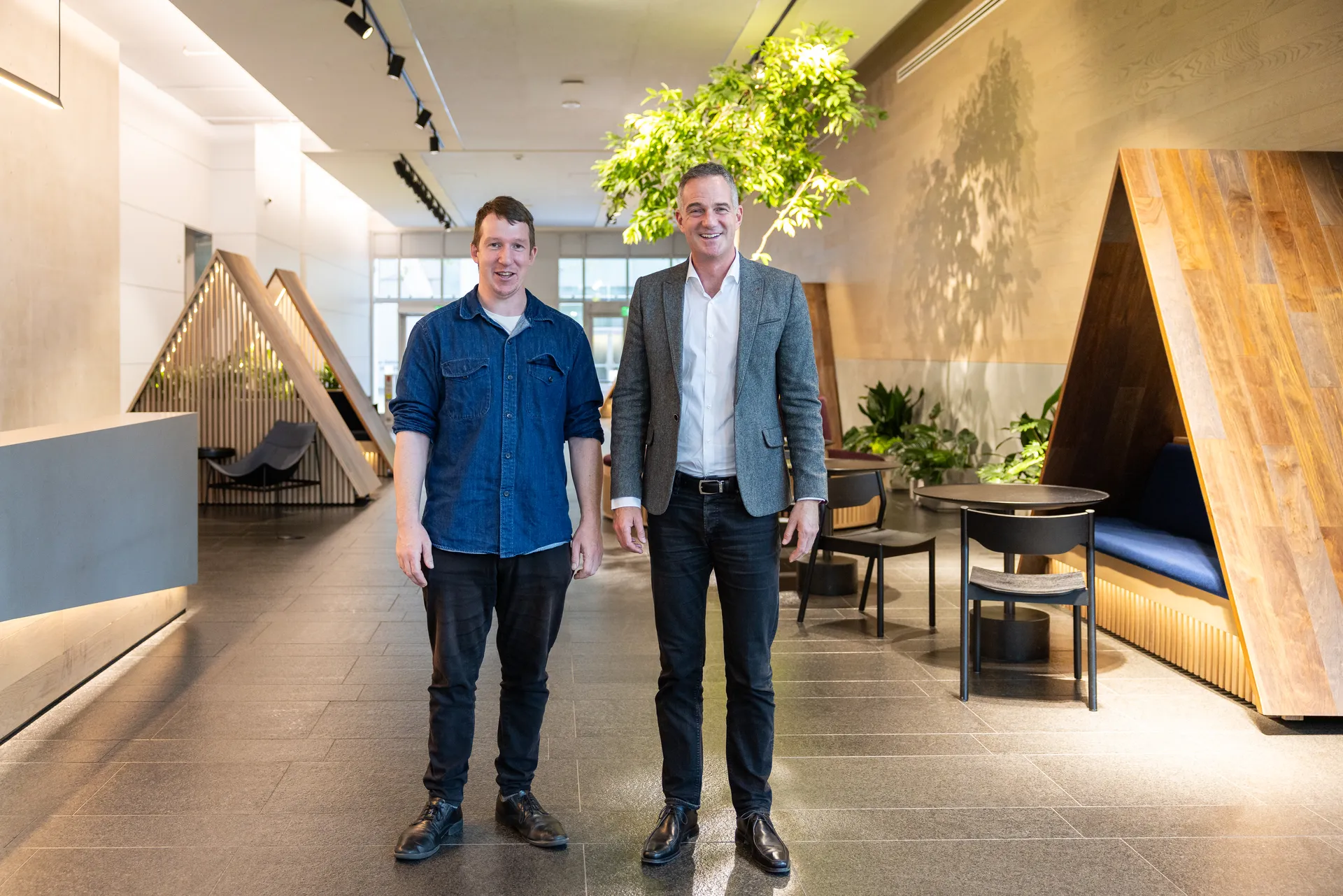
Image: UK Secretary of State Peter Kyle visiting Anthropic in San Francisco, Department for Science, Innovation and Technology, CC BY 2.0, via Wikimedia Commons.
Like our coverage? Add stepphase.com as a preferred source on Google to see more of our stories in Top Stories.

