



 Saif Ali Tai
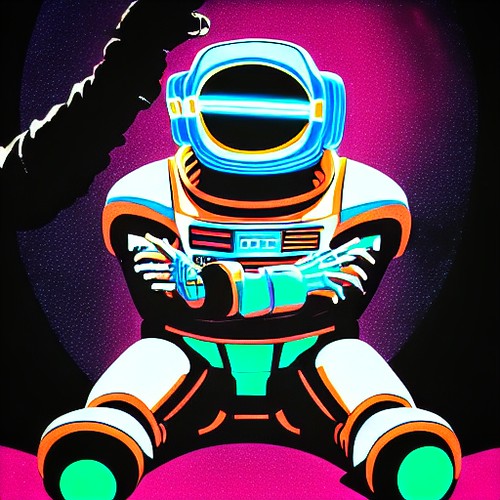
Getting started with Stable Diffusion, the powerful open-source AI image generator, is easier than you might think. This guide cuts through the jargon, showing complete beginners how to turn simple text prompts into unique digital art. Forget complex coding; we’re focusing on accessible tools that let you create anything from fantastical creatures to photorealistic portraits. Within minutes, you can be generating your own AI masterpieces.
📋 In This Article
What is Stable Diffusion and Why Should You Care?

Stable Diffusion, first released by Stability AI in August 2022, is a deep learning model that generates images from text descriptions. Unlike many proprietary AI art tools, its open-source nature means anyone can download, run, and even modify it. This has fueled a massive community creating custom models and user-friendly interfaces. For creators, artists, and even casual users, it’s a revolutionary way to visualize ideas without needing traditional artistic skills or expensive software. Think of it as having an infinitely patient, incredibly versatile digital artist at your fingertips, ready to paint your imagination into existence.
The Open-Source Advantage
Being open-source is a huge deal. It means no subscription fees like Midjourney ($20/month for basic access) or DALL-E 3 (often bundled with ChatGPT Plus at $20/month). While you might need a decent GPU to run it locally, many web services offer Stable Diffusion access for free or a small fee, making it incredibly accessible. This freedom also fosters rapid innovation, with new features and models appearing almost weekly.
Getting Started: Easy Ways to Run Stable Diffusion
You don’t need a supercomputer to start. For absolute beginners, web-based interfaces are the way to go. Services like Hugging Face Spaces offer free, albeit sometimes slow, access to basic Stable Diffusion models. For a more robust experience without local installation, consider platforms like DreamStudio (from Stability AI itself), which offers a credit-based system starting around $10 for 100 credits. Each credit typically generates a few images. These platforms handle all the complex setup, letting you jump straight into prompting.
Local Installation: For the Enthusiasts
If you have a dedicated GPU (NVIDIA RTX 3060 12GB or better is recommended), running Stable Diffusion locally offers maximum control and speed. The most popular interface is AUTOMATIC1111’s Stable Diffusion Web UI. Installation involves downloading the software and models, which can be a few gigabytes. While the initial setup might take an hour, it’s free to run once installed and allows for advanced features like custom model loading and extensions.
Crafting Your First Prompts: The Art of Text-to-Image
The magic happens with your text prompt. It’s a description of the image you want. Start simple! Instead of ‘cat’, try ‘A fluffy ginger cat sitting on a windowsill, sunlight streaming in, photorealistic’. Add details about style (‘digital art’, ‘oil painting’, ‘cinematic lighting’), artist influences (‘in the style of Van Gogh’), or camera angles (‘wide shot’, ‘close-up’). The more descriptive you are, the closer the AI gets to your vision. Don’t be afraid to experiment; sometimes the unexpected prompts yield the most interesting results.
Negative Prompts: What NOT to Include
Just as important as what you want is what you *don’t* want. Use the ‘negative prompt’ field to exclude elements. Common negative prompts include ‘ugly’, ‘blurry’, ‘low quality’, ‘deformed hands’, or ‘extra limbs’. This helps refine your output and avoid common AI generation flaws, especially when generating human figures.
Beyond the Basics: Parameters and Styles
Once you’re comfortable with basic prompting, explore parameters. Most interfaces let you control image ‘steps’ (how long the AI refines the image, usually 20-50 is good), ‘CFG scale’ (how closely the AI follows your prompt, 7-12 is a common range), and image dimensions. You can also load different ‘models’ or ‘checkpoints’. These are specialized versions of Stable Diffusion trained on specific styles or subjects – like models fine-tuned for anime, photorealism, or fantasy art. Finding and using these custom models, often available on sites like Civitai, can dramatically change your output quality and style.
Exploring Custom Models
The Stable Diffusion ecosystem thrives on community-created models. Websites like Civitai host thousands of these, often trained for specific aesthetics. For example, a model like ‘Realistic Vision V6.0’ might cost nothing to download but requires a capable GPU (at least 8GB VRAM) to run effectively. Experimenting with these can unlock entirely new visual possibilities beyond the base models.
⭐ Pro Tips
- Use a free web UI like Hugging Face Spaces for your first 10-20 generations before committing to paid services or local setup.
- Look for bundles on DreamStudio or similar services; often, buying larger credit packs ($50 for 1000 credits) offers a better per-image price than smaller ones.
- Don’t expect perfect hands on the first try. Use negative prompts like ‘deformed hands, extra fingers, poorly drawn hands’ and consider using img2img or inpainting features for refinement.
Frequently Asked Questions
How do I install Stable Diffusion on my PC for free?
Download AUTOMATIC1111’s Stable Diffusion Web UI. You’ll need Python and Git installed, plus download the base Stable Diffusion models (SD 1.5 or SDXL). Ensure you have an NVIDIA GPU with at least 6GB VRAM.
Is Stable Diffusion better than Midjourney?
Stable Diffusion offers more control and is free if run locally, making it better for tinkerers. Midjourney often produces more aesthetically pleasing results out-of-the-box with simpler prompts, but requires a subscription.
How much does it cost to run Stable Diffusion?
Running locally is free after initial hardware investment (GPU cost varies widely, ~$300+ for a decent one). Web services range from free tiers with limitations to around $0.02-$0.10 per image generated.
Final Thoughts
Stable Diffusion is an incredibly powerful tool that’s now within reach for everyone. Don’t be intimidated by the tech talk; start with simple prompts on a free web service. Experiment, have fun, and see what your imagination can create. The barrier to entry is lower than ever, so jump in and start generating your own unique AI art today.



GIPHY App Key not set. Please check settings